
Submit a presentation
Choose your intake and module, send your presentation, and confirm it in My Submissions.
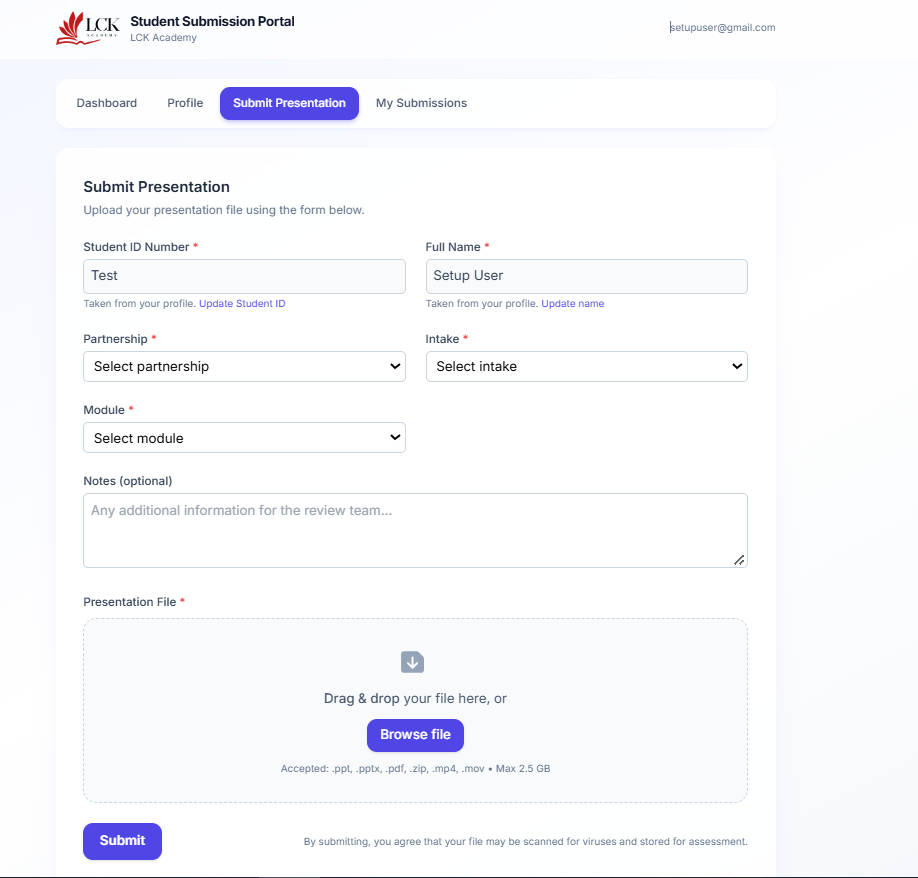
What you need
- A completed account setup and the ability to sign in to the portal.
- Correct Student ID and name on your account (you cannot fix these in My Profile).
- Your presentation file saved on your computer.
- The correct partnership, intake, and module for your assignment (ask your tutor if unsure).
What to do
- Sign in and open Submit presentation.
- Choose partnership, intake, and module for this submission.
- Attach your presentation file and send the form.
- Open My Submissions to confirm it appears on the list.
After you submit
You should receive a confirmation email. Keep a copy of your file until your tutor confirms it was received.
If something looks wrong (wrong name or Student ID), contact LCK support before submitting again.