
Submission portal (dashboard)
After login, use the dashboard and navigation to manage your profile and submissions.
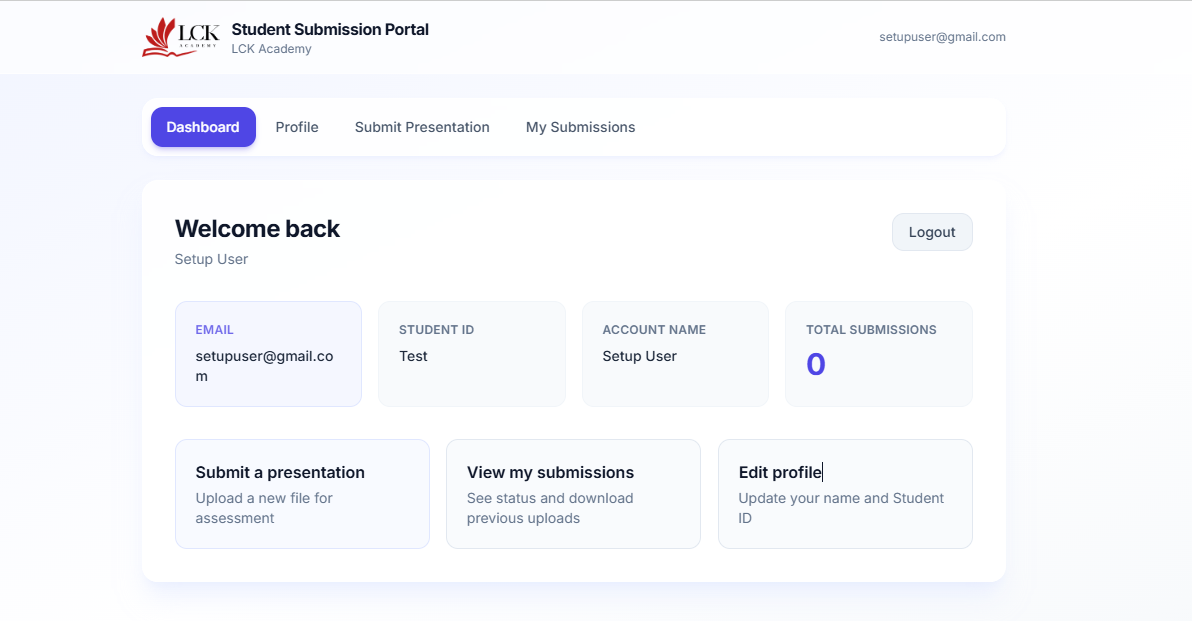
Dashboard
After login you land on the dashboard. You can see your email, Student ID, name, and how many submissions you have made.
If Student ID is missing on your dashboard, contact LCK support — it is managed by the academy.
Navigation
- Dashboard — summary and shortcuts.
- Submit presentation — upload a new file.
- My Submissions — list of past uploads and download links.
- My Profile — view your details, change your password, or request a password reset email.
- Logout — end your session securely.
Student ID and name on the submit form
These are filled from your academy record. You cannot change them on the submit form, and you cannot change them in My Profile — profile only lets you view those details and manage your password.
If your name or Student ID is wrong, contact LCK support before you submit a presentation.